
Keep Editing Your Recognized Diagram Anywhere
Turn Sketch2scheme results into editable diagrams by switching to the Visual Editor or importing Mermaid code directly into diagrams.net.
Posted by
 Denis
DenisRelated reading
Comprehensive Guide to Flowchart Design Tips
Unlock the potential of flowcharts to enhance communication and streamline processes. Discover essential design tips for clarity, consistency, and effective project management.
Sketch2scheme gives you a ready-to-share flowchart as soon as recognition finishes, but the real magic happens when you keep iterating on that diagram. Below is a quick workflow that keeps you in control—whether you prefer the built-in Visual Editor or want to keep tweaking inside diagrams.net with Mermaid code.
1. Wrap up recognition
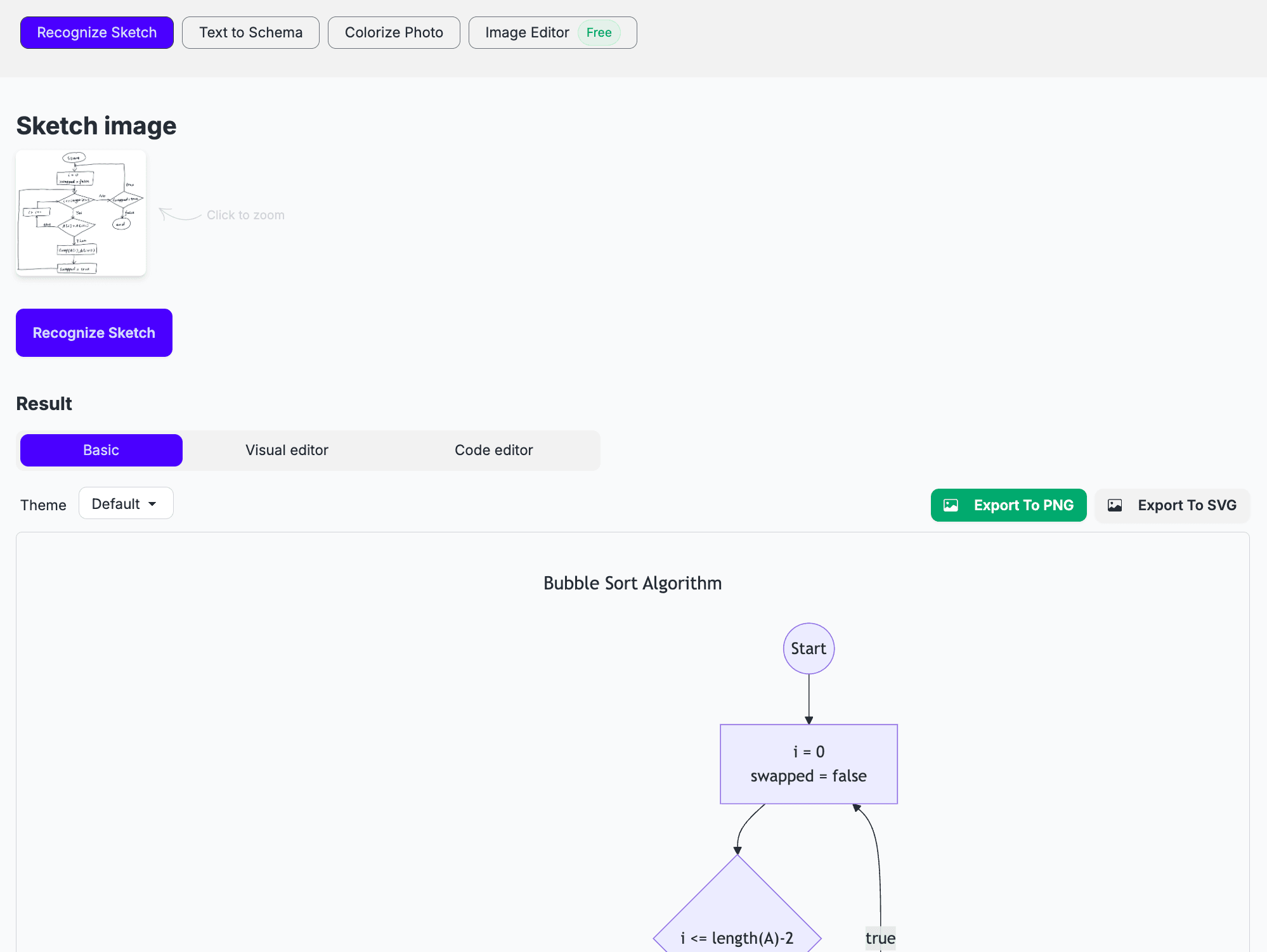
Start inside the Recognize Sketch tab. Once the upload completes you get a clean, theme-ready version of your original sketch. From here you can still export PNG/SVG, but we will keep editing instead.
2. Switch to the Visual Editor
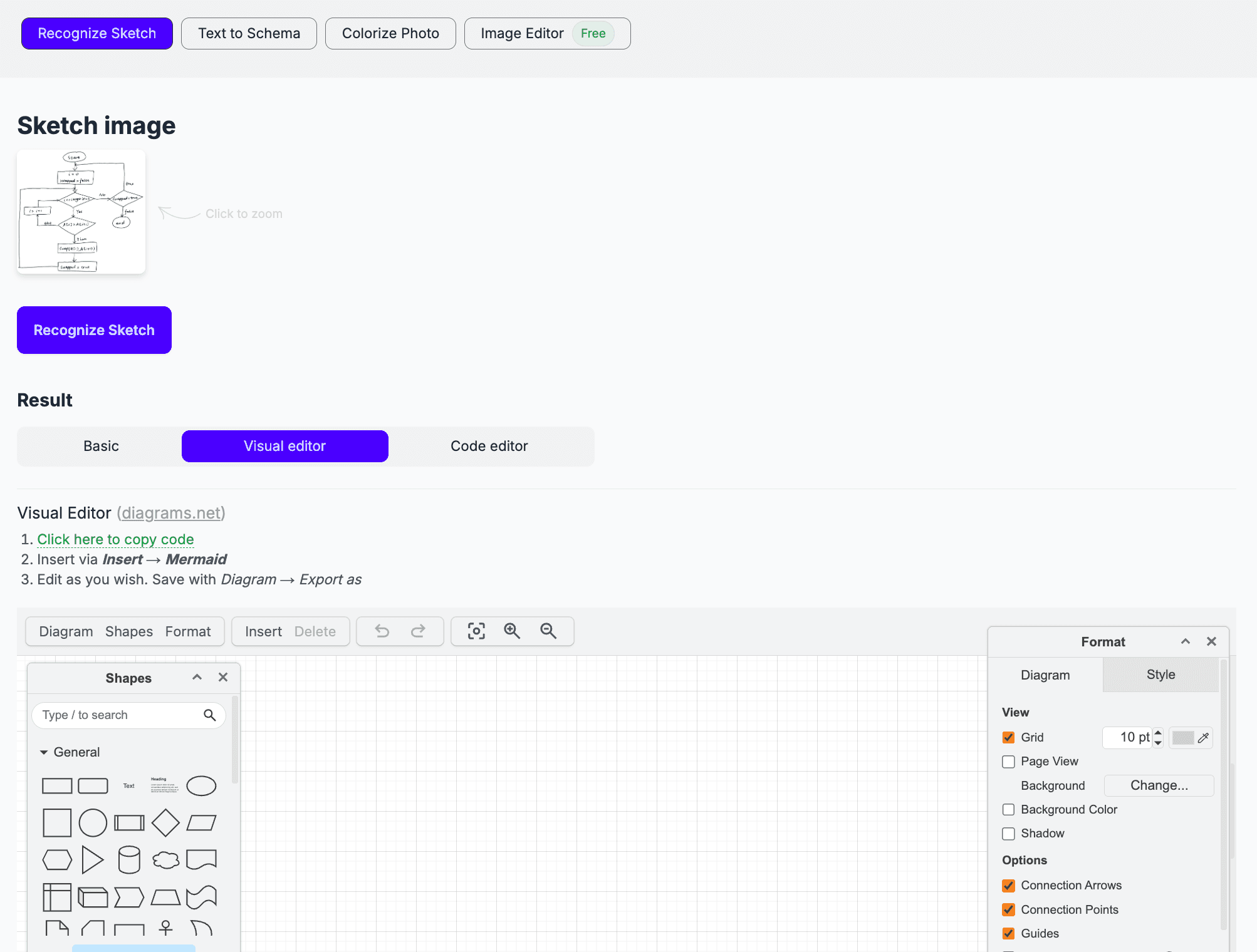
Jump over to the Visual editor tab. It mirrors the diagrams.net interface, so every menu option feels familiar. Use the Click here to copy code link at the top—this grabs the automatically generated Mermaid definition for your flowchart.
3. Import Mermaid code into diagrams.net
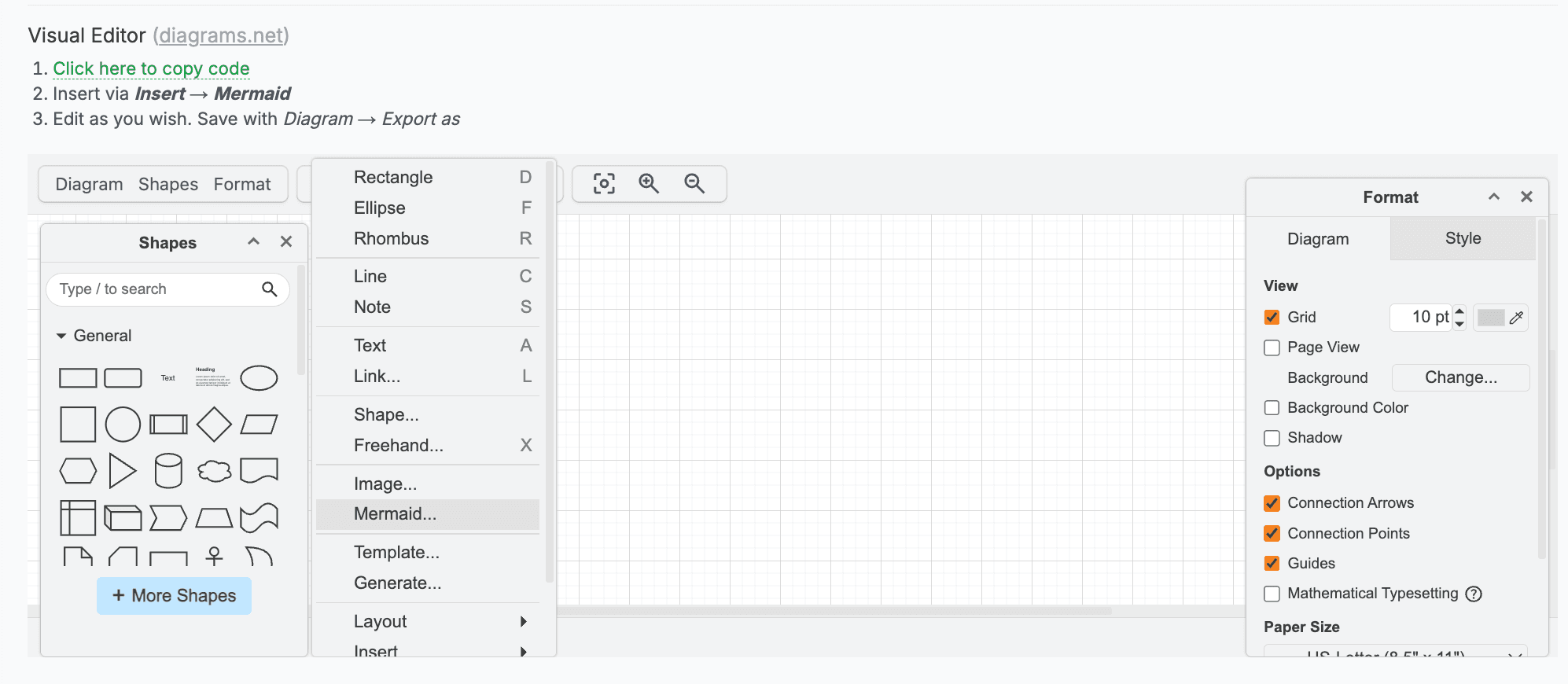
- Open diagrams.net (either inside Sketch2scheme or in a new tab).
- In the menu, go to Insert → Mermaid and paste the code you copied a moment ago.
- Click Insert to render the diagram, then adjust shapes, text, or theme.
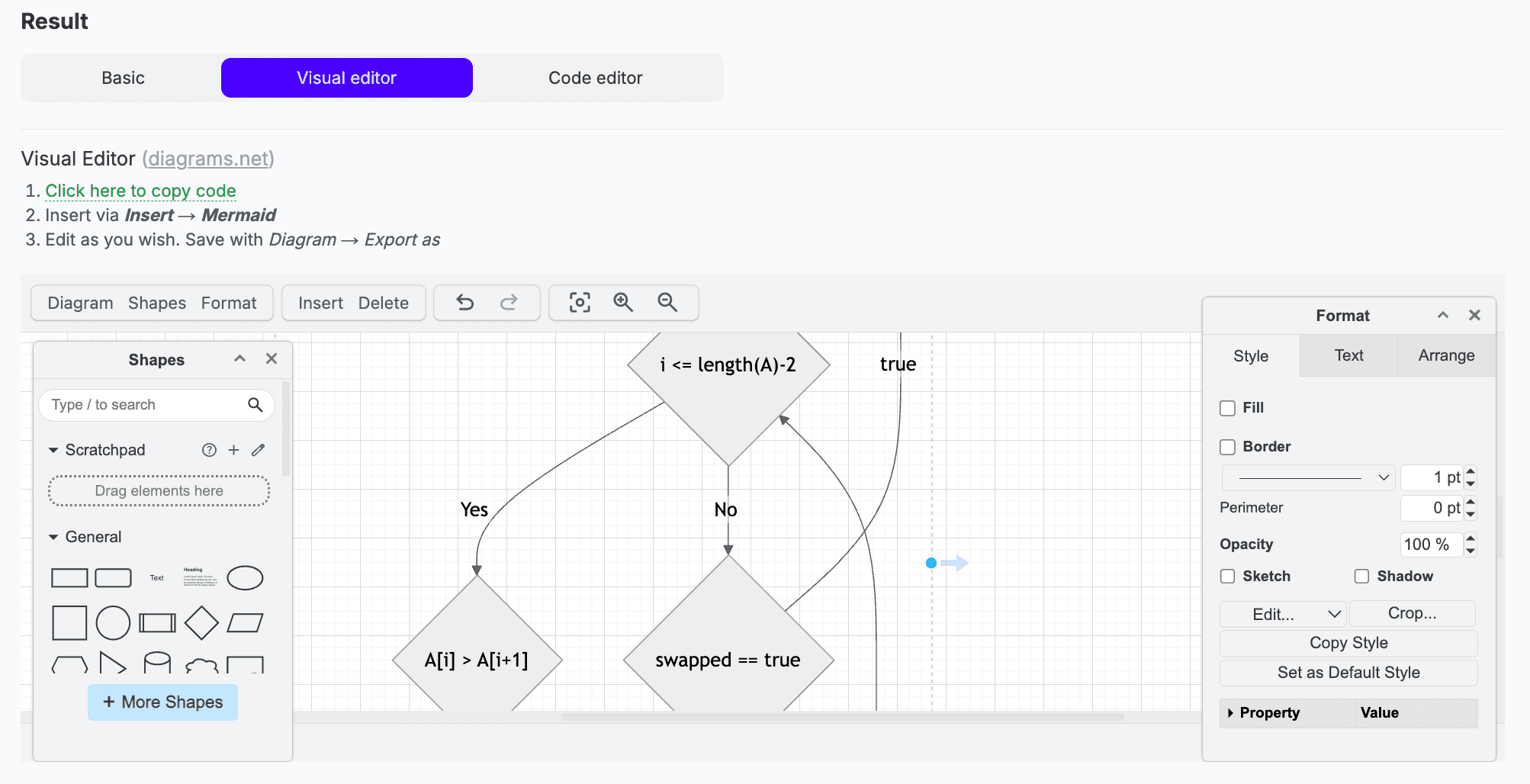
Because everything stays in Mermaid, you can iterate endlessly: change labels, reflow branches, or add swim lanes. When you are done, export straight from diagrams.net via Diagram → Export as in any format you prefer.
Prefer editing directly in diagrams.net?
You do not have to embed the editor inside Sketch2scheme. Click the diagrams.net link in the Visual Editor tab to open a new window, paste the same Mermaid snippet, and continue working there. It is the same canvas, just full screen with your saved libraries and shortcuts.
That is it—recognize your sketch, copy the Mermaid code, and keep polishing in whichever editor fits your workflow. You get the speed of AI recognition without giving up the control of a traditional diagramming tool.